
auto-config-banner
•
MACOS AUTOMATION
AUTOMATOR
IWORK AUTOMATION
•

Exporting the Certificate Files

After you’ve completed the creation of a supervision identity, the next step is to export the supervision certificate files for the identity, from the Apple Configurator application.

Click the “Cog” button to reveal the Export options, choose ”Export Supervision Identity...” and a save sheet will appear over the Organizations window.
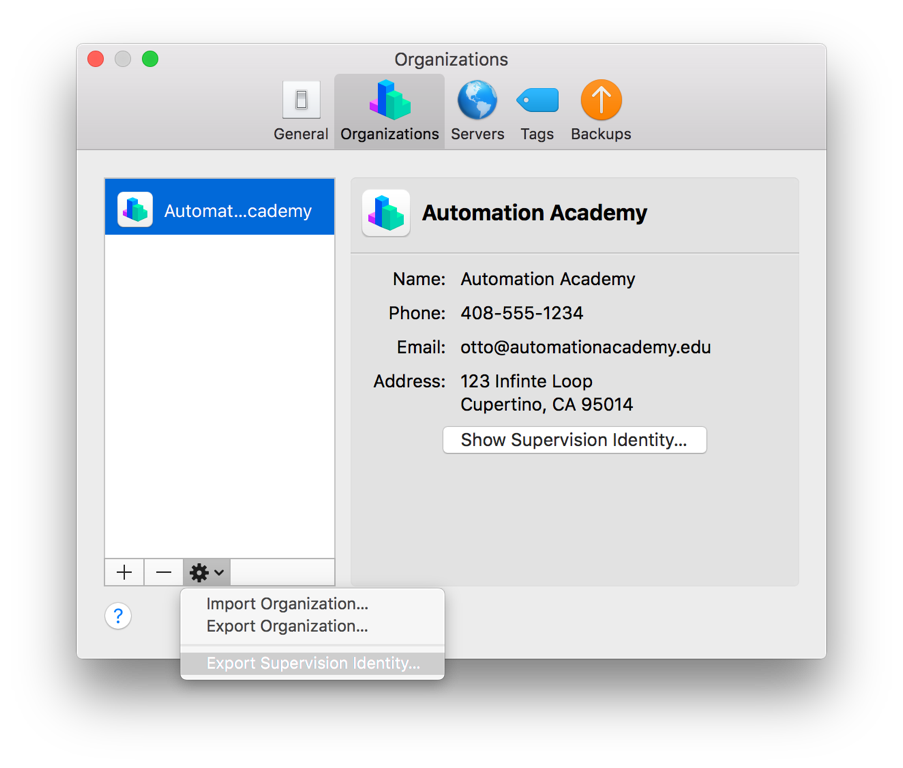
keychain-export-00

Enter a name for the certificates and choose a location for the exported files. Set the Format to “Unencrypted DER (.crt and .key, for Automator and cfgutil)"
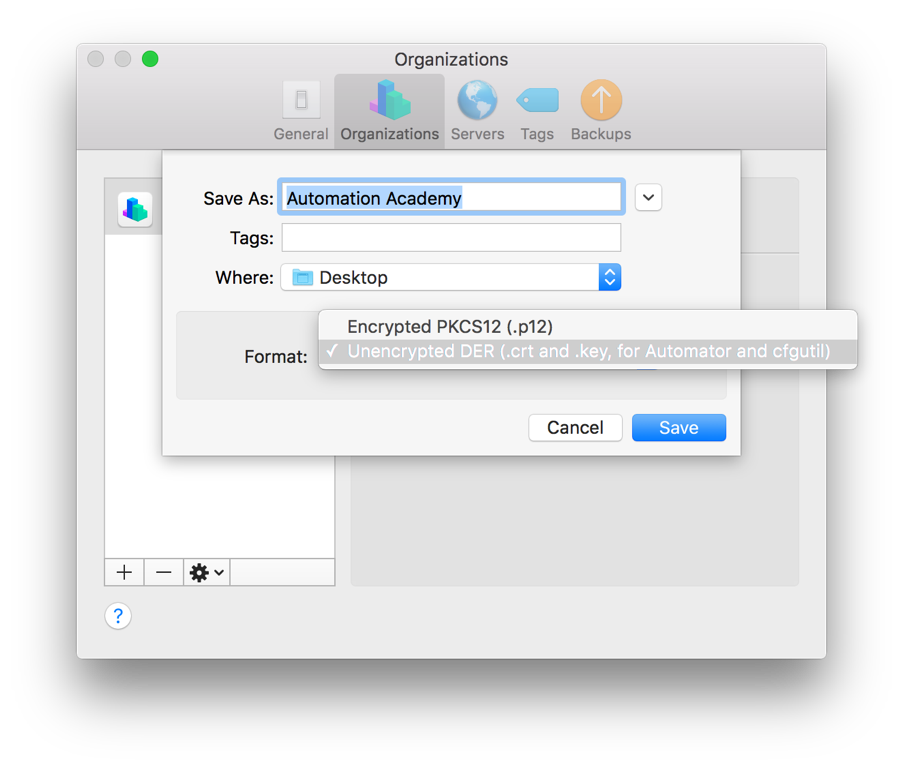
keychain-export-00

NEXT TOPIC: Selection Actions

TOPICS

  • Overview
  • Automator Quick-Start

  • Supervision Identity
  • Create Profile
  • Export Certificate
  • Selection Actions
  • DEP Actions
  • Formatting Actions
  • Backup Actions
  • Installation Actions
  • Information Actions
  • Configuration Utility Script Library
  • “Attached” Workflows

  • Workflow Recipes
  • iOS Classroom

DISCLAIMER

THIS WEBSITE IS NOT HOSTED BY APPLE INC.

Mention of third-party websites and products is for informational purposes only and constitutes neither an endorsement nor a recommendation. MACOSXAUTOMATION.COM assumes no responsibility with regard to the selection, performance or use of information or products found at third-party websites. MACOSXAUTOMATION.COM provides this only as a convenience to our users. MACOSXAUTOMATION.COM has not tested the information found on these sites and makes no representations regarding its accuracy or reliability. There are risks inherent in the use of any information or products found on the Internet, and MACOSXAUTOMATION.COM assumes no responsibility in this regard. Please understand that a third-party site is independent from MACOSXAUTOMATION.COM and that MACOSXAUTOMATION.COM has no control over the content on that website. Please contact the vendor for additional information.