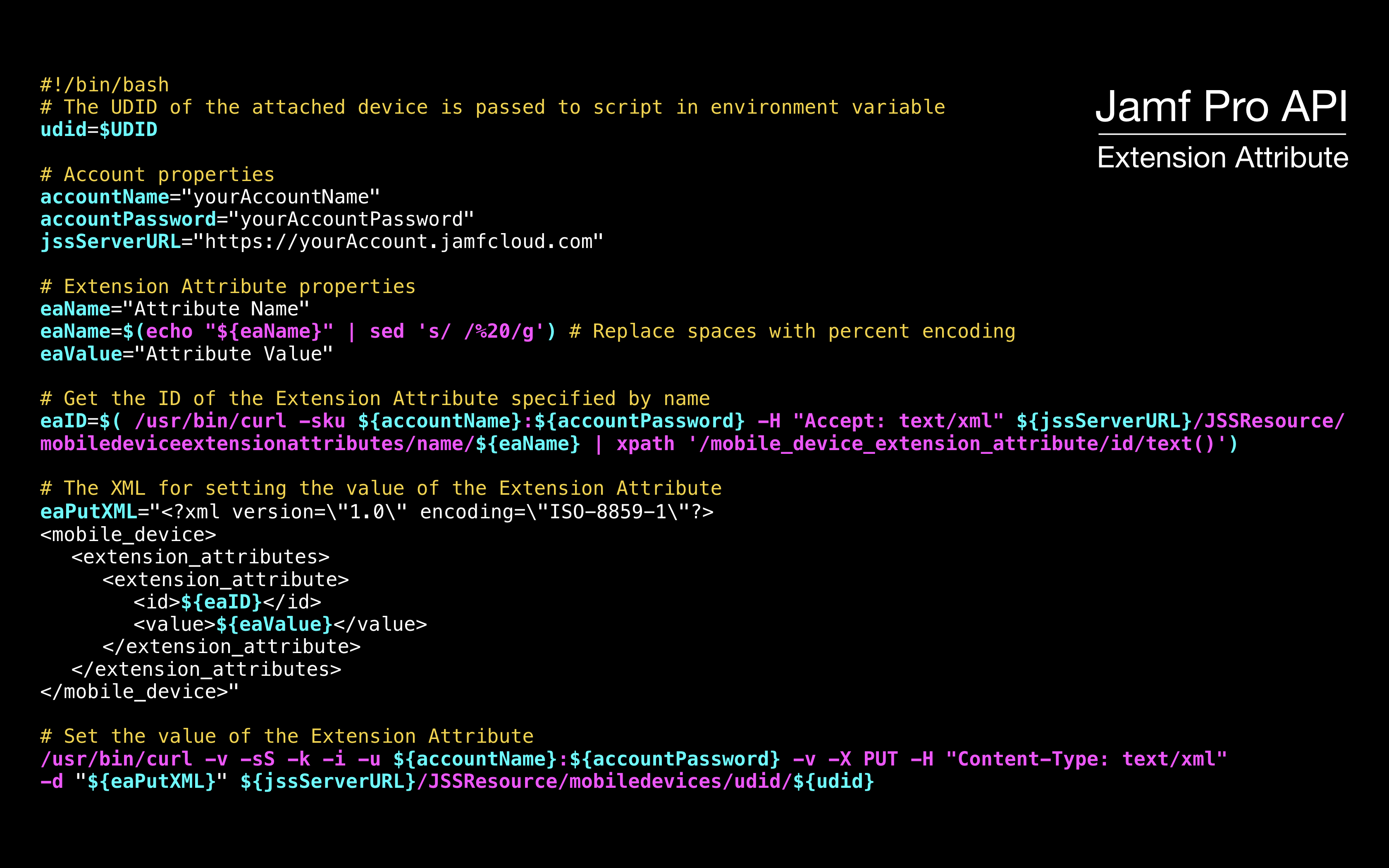
Set JAMF Pro Extension Attribute on Attachment
Using the files provided here, the attachment of a JAMF Pro-managed iOS device can trigger the automatic setting of a specified Extension Attribute value, which may further trigger the assignment to groups and the application of configuration profiles.
This automatic process is accomplished using two customized files:
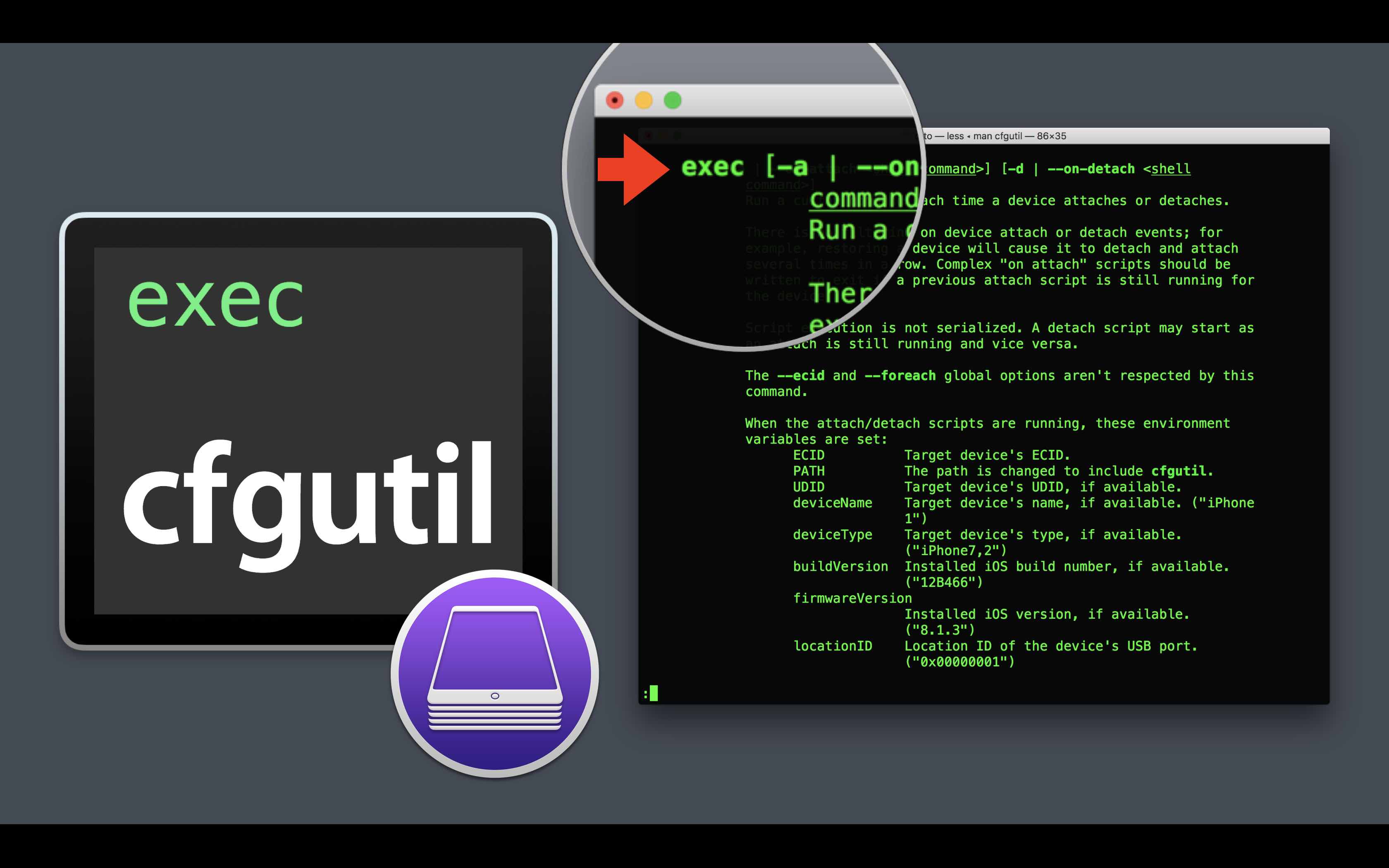
- A Launch Agent that uses Apple Configurator’s cfgutil command line utility to execute the shell command when an iOS device is attached.
- An Attachment Command shell script that communicates directly to the JAMF Pro server to set the value of the Extension Attribute specified within the script.
Launch Agent
A launch agent is executed by Launch Services when a specified event occurs. Launch agents run on behalf of a user and therefore need the user to be logged in to run. Launch agents can display information through the window server. User launch agents are installed in the ~/Library/LaunchAgents folder.
In this example, the provided launch agent executes the exec command contained by the cfgutil command line utility that is shipped with the Apple Configurator application (man page here). Note that this utility must be installed by the user by selecting Install Automation Tools from the Apple Configurator application menu.
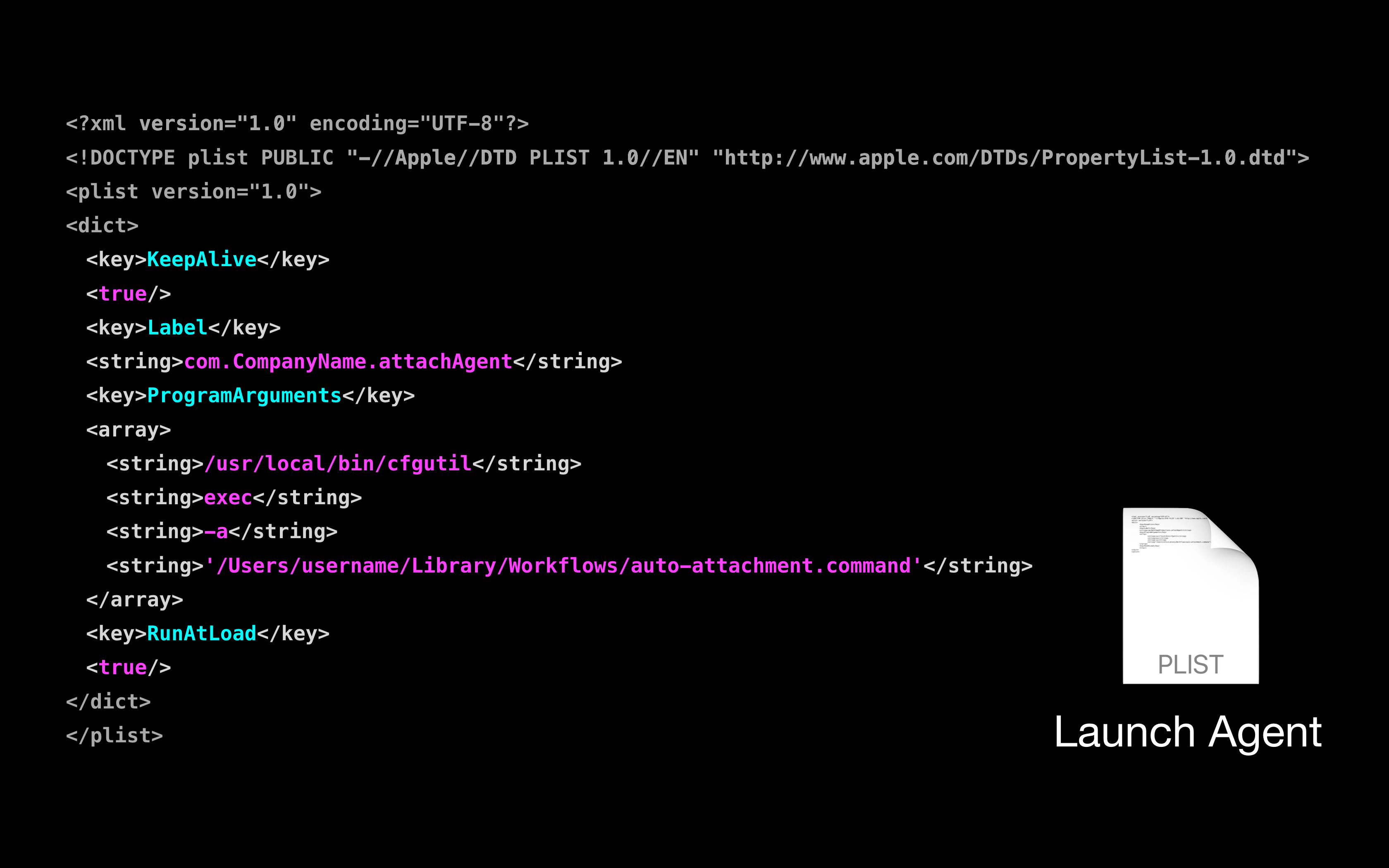
Provided here is a template for the launch agent:
DO THIS ► DOWNLOAD the file template. Replace the developer/company identifier and the current user name placeholders, and then put the saved file in the Home > Library > Launch Agents folder.
Attachment Command
The attachment command is a shell script, executed by the Apple Configurator utility, that uses identifying information extracted from the attached device, and user-provided JAMF account data, to communicate directly with the JAMF Pro server when the device is attached to the host macOS computer.
DO THIS ► DOWNLOAD the file template. Replace the JAMF account name, JAMF account password, JSS Server URL, Extension Attribute name, and Extension Attribute value placeholders, and then put the saved file in the Home > Library > Workflows folder.